

A strong WiFi connection is now part of everyday life. We use it for work, online classes, video calls, streaming, gaming, smart TVs, security cameras, mobile apps, and even home appliances. But while most people care about internet speed, very few think about WiFi security until something goes wrong. One of the simplest ways to protect your home internet is to change your WiFi password regularly.
Many users keep the same WiFi password for years. Some continue using the default password printed on the router sticker. Others share their WiFi with friends, guests, neighbors, or service workers and never update it again. This may seem harmless, but an old or weak WiFi password can create problems such as slow internet, unknown connected devices, privacy risks, and unwanted access to your network.
Changing your du WiFi password is not just a technical task. It is a basic digital safety habit that every home internet user should follow.
Why Your WiFi Password Matters
Your WiFi password is the first lock on your home network. Anyone who knows it can connect to your internet if they are nearby. Once connected, they may use your bandwidth, affect your speed, or access devices that are not properly protected.
This is especially important if you use smart devices at home. Smart TVs, printers, cameras, speakers, and laptops may all connect to the same network. If your WiFi password is easy to guess, shared too widely, or never changed, your home network becomes less private.
A strong WiFi password helps you control who can use your internet. It also keeps unknown users away and gives you better performance because fewer unwanted devices are connected.
Signs You Should Change Your WiFi Password
You do not need to wait for a major problem before updating your WiFi password. In many cases, small signs can show that it is time for a change.
If your internet suddenly feels slow even when your signal is strong, there may be too many devices using the network. If you notice unknown devices in your router settings, you should update the password immediately. You should also change it after sharing your password with guests, moving into a new home, installing a new router, or using the same password for a long time.
Another reason to update your password is security. If your current password includes your name, phone number, birthday, house number, or simple words like “password123,” it is not safe enough. A WiFi password should be hard for others to guess but easy for you to remember.
How Changing Your WiFi Password Can Improve Speed
Many people do not realize that unknown users can slow down their internet. If neighbors or nearby users have your WiFi password, they may stream videos, download large files, play online games, or use your connection without your permission.
When too many devices are connected, your router has to share bandwidth between them. This can make your phone, laptop, or smart TV feel slower. Video calls may freeze, streaming may buffer, and downloads may take longer.
Changing your WiFi password disconnects all devices using the old password. After saving a new password, only the devices you reconnect will have access. This gives you a fresh start and helps you remove unwanted users from your home network.
Best Practices for Creating a Strong WiFi Password
A good WiFi password should be at least 12 characters long. It should include uppercase letters, lowercase letters, numbers, and symbols. Avoid common words, names, mobile numbers, or simple patterns.
For example, instead of using something weak like “homewifi123,” you can create a stronger password using a phrase and symbols. A password such as “BlueHome@Net45” is easier to remember and harder to guess than a basic password.
You should also avoid using the same password for your WiFi, email, banking apps, and social media accounts. Keeping different passwords for different services reduces risk if one password is ever exposed.
Do You Need to Change the Router Admin Password Too?
Yes, if possible, you should also change your router admin password. Many people confuse the WiFi password with the router admin password, but they are different.
The WiFi password lets devices connect to your internet. The router admin password allows access to router settings. If someone knows your router admin login, they may be able to change WiFi settings, view connected devices, rename the network, or adjust security options.
After setting a strong WiFi password, log in to your router dashboard and check whether the admin password is still set to the default. If it is, update it to something secure. This adds another layer of protection to your home network.
How Often Should You Change Your WiFi Password?
There is no fixed rule for everyone, but changing your WiFi password every few months is a good habit. You should also change it whenever you think too many people know it.
For home users, updating the password every three to six months is usually enough. For shared apartments, offices, shops, and rental spaces, changing it more often may be better. Any time a guest, tenant, employee, or service provider no longer needs access, updating the password is a smart move.
The goal is not to make things complicated. The goal is to keep your network clean, private, and controlled.
How to Change Your WiFi Password Safely
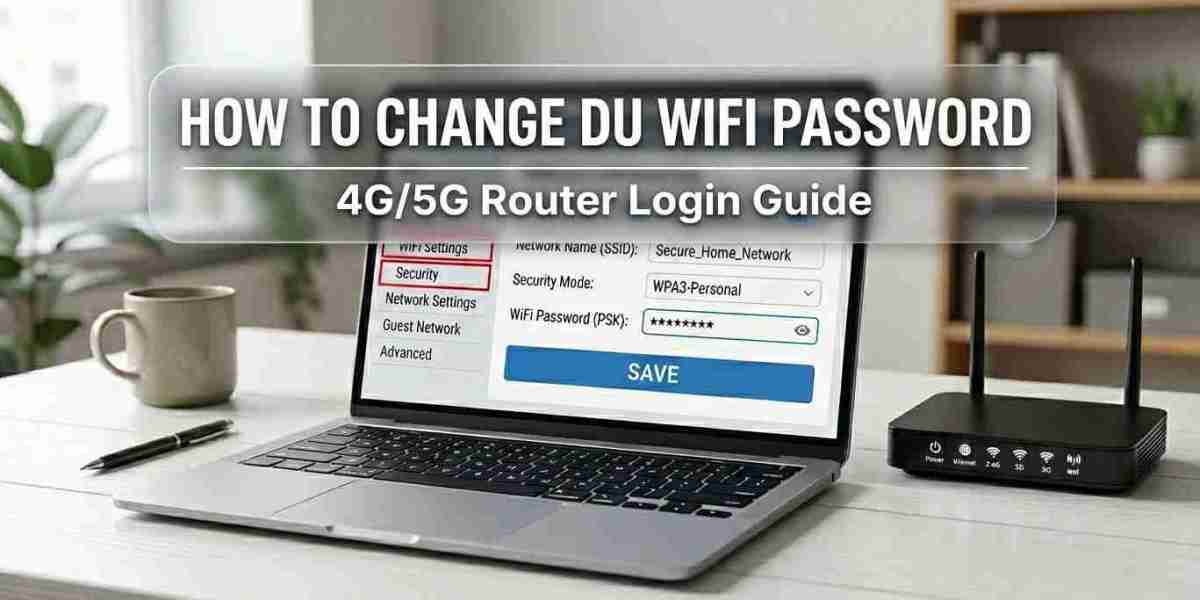
The exact steps depend on your internet provider and router model, but the basic process is usually similar. First, connect your phone or computer to the WiFi network. Then open a browser and enter your router login address. After logging in with the admin details, go to WiFi, Wireless, WLAN, or Security settings. From there, enter a new password, save the changes, and reconnect your devices.
For du internet users, this process may involve router login pages such as common local IP addresses and WiFi settings for 4G or 5G routers. If you need a simple step-by-step tutorial, you can follow this detailed guide on how to change du WiFi password to understand the full process clearly.
Before changing your password, make sure you write down the new one somewhere safe. Once the password is saved, your devices will disconnect and you will need to reconnect them using the updated password.
What to Do After Changing Your WiFi Password
After changing the password, reconnect your important devices first. Start with your main phone, laptop, smart TV, and work devices. Then reconnect other devices such as tablets, gaming consoles, printers, speakers, and cameras.
If a device keeps failing to connect, open its WiFi settings and choose “Forget Network.” Then select the network again and enter the new password. This removes the old saved password and lets the device connect fresh.
You should also check your router’s connected device list after the change. This helps you confirm that only trusted devices are using your network.
Extra Tips to Keep Your WiFi Secure
Along with changing your password, you can take a few more simple steps. Use WPA2 or WPA3 security if your router supports it. Avoid keeping an open WiFi network without a password. Do not share your password with too many people. If your router allows guest WiFi, create a separate guest network for visitors.
Also, keep your router in a safe place inside your home. If the router sticker shows login details, avoid placing it where visitors can easily read it. Restarting your router occasionally can also help fix minor connection issues and refresh the network.
Final Thoughts
Changing your WiFi password is one of the easiest ways to improve your home network security, privacy, and performance. It helps remove unknown users, protects your connected devices, and gives you better control over who can access your internet.
You do not need advanced technical knowledge to do it. With the right router login details and a few careful steps, you can update your WiFi password from a phone, laptop, or computer. Make it a regular habit, choose a strong password, and keep your home network safer for everyday use.