


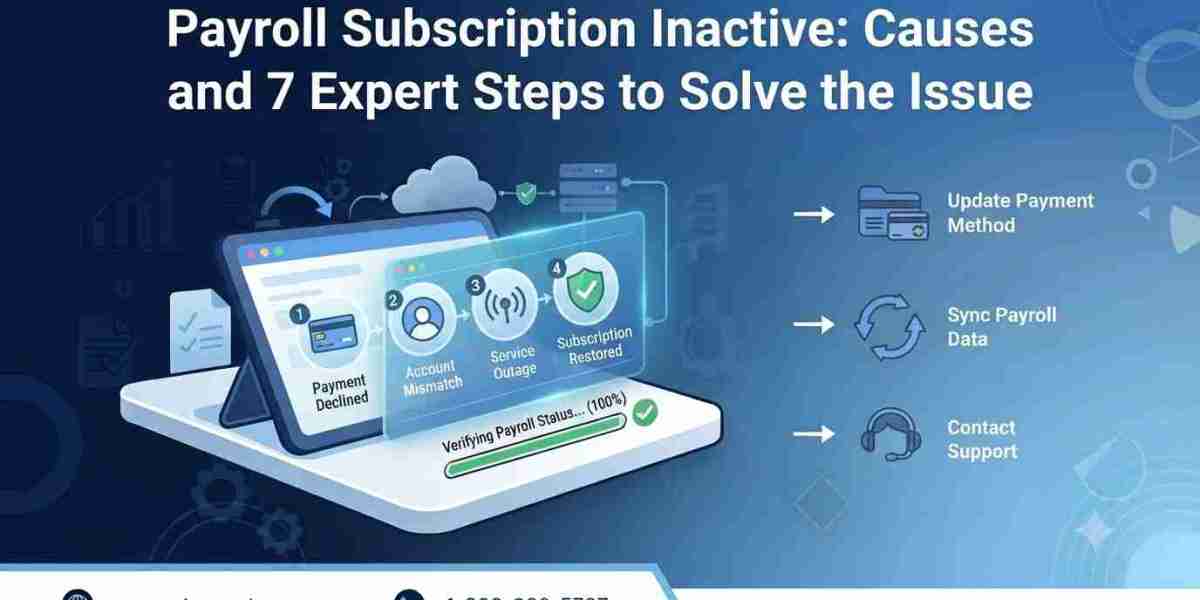
The process of generating payrolls is linked to the availability of an active subscription and updated payroll tax details. If a payroll subscription inactive shows up, then the payroll functions might become unusable. The process of updating, calculations, and payroll processing may also experience some interruptions. Swift actions will help regain payroll functionality and ensure proper payments for employees.
Why Does a Payroll Subscription Become Inactive?
Several account, payment, and service issues can cause an inactive payroll status. Identifying the actual cause makes restoration faster and prevents unnecessary software changes:
- An expired or declined payment method can interrupt subscription renewal
- A failed renewal can leave the payroll plan inactive after its billing date
- Incorrect billing information can prevent successful payment processing
- An expired payroll plan can disable subscription-based payroll services
- A deactivated payroll service can stop payroll features from working
- An incorrect service key can prevent QuickBooks from verifying payroll services
- Temporary Intuit service issues can interfere with subscription verification
- Account synchronization problems can cause subscription information to display incorrectly
How to Fix Payroll Subscription Inactive
Start with account and billing checks before changing QuickBooks settings. These seven steps cover the most common fixes for inactive payroll services.
1. Check Your Payroll Subscription Status
- Open QuickBooks Desktop
- Select Employees
- Choose My Payroll Service
- Select Account/Billing Information
- Review the displayed subscription status
- Confirm that your payroll plan remains active
- You can also review subscription details through Intuit's account management page
2. Update Your Billing Information
- Sign in to your Intuit account
- Open your billing details
- Review the saved payment method
- Replace an expired card when necessary
- Confirm the billing address matches your payment account
- Save the updated payment information
- Recheck your subscription after the payment details update
3. Renew the Payroll Subscription
- Check the subscription renewal date
- Renew the plan if it has expired
- Confirm that the payment processes successfully
- Reopen QuickBooks after completing the renewal
- Check whether payroll services become available
- If you see QuickBooks payroll subscription expired, renewal should be your first priority
4. Verify the Payroll Service Key
- Open QuickBooks Desktop
- Select Employees
- Choose My Payroll Service
- Select Manage Service Key
- Review the listed service key
- Correct inaccurate information when necessary
- Check the subscription again after saving the changes
- Intuit confirms that payroll service details can include the service key and subscription number
5. Download the Latest Payroll Updates
- Open QuickBooks Desktop
- Select Employees
- Choose Get Payroll Updates
- Select Download Entire Update
- Click Update
- Wait for the download to finish
- Verify the installed payroll update afterward
6. Refresh QuickBooks Payroll Settings
- Close QuickBooks Desktop
- Reopen the application
- Sign in using the correct Intuit credentials
- Check the payroll service connection
- Verify the subscription status again
- Retry payroll processing
- Download the latest tax table if the service becomes active
7. Use QuickBooks Tool Hub
- Download and install the QuickBooks Tool Hub
- Close QuickBooks before opening the tool
- Open the Tool Hub application
- Select Program Problems
- Choose Quick Fix my Program
- Allow the repair process to finish
- Restart QuickBooks and check the payroll subscription again
- Intuit states that Quick Fix closes background processes and performs a quick program repair
How to Prevent Payroll Subscription Problems
Regular account checks can reduce payroll interruptions and prevent unexpected service failures. Businesses should maintain current billing information and monitor subscription dates.
Follow These Preventive Measures
- Keep payment information current
- Monitor subscription renewal dates
- Maintain accurate Intuit account details
- Install QuickBooks updates regularly
- Download payroll updates on schedule
- Check subscription status before payroll processing
- Maintain recent company file backups
- Review payroll information before important paydays
Conclusion
Fixing a payroll subscription inactive begins with checking subscription status, billing information, and details on renewal. Ensure that you have checked the service key before going further with the software. Update your payroll immediately after gaining access to the payroll system. QuickBooks Tool Hub may assist in program-related problems.
Payroll subscription still showing inactive? Contact Accounting Assist Pro professionals at +1-888-892-5727 for QuickBooks services.
FAQs About Payroll Subscription Inactive
Why does my payroll subscription show as inactive?
Your subscription may be inactive because of failed payments, expired billing details, or account verification problems. Check your subscription status first.
How do I reactivate an inactive payroll subscription?
Review your billing information and renewal status. Update payment details and renew the plan if necessary.
Can an expired subscription stop QuickBooks payroll updates?
Yes. An expired subscription can prevent access to payroll services and current payroll updates. Renew the plan before downloading new tax tables.
How do I check my QuickBooks payroll subscription status?
Open QuickBooks Desktop and select Employees, followed by My Payroll Service. Choose Account/Billing Information to review your status.
What should I do if my renewed subscription still shows inactive?
Confirm the renewal payment succeeded and verify your Intuit account. Then check the service key and restart QuickBooks.