


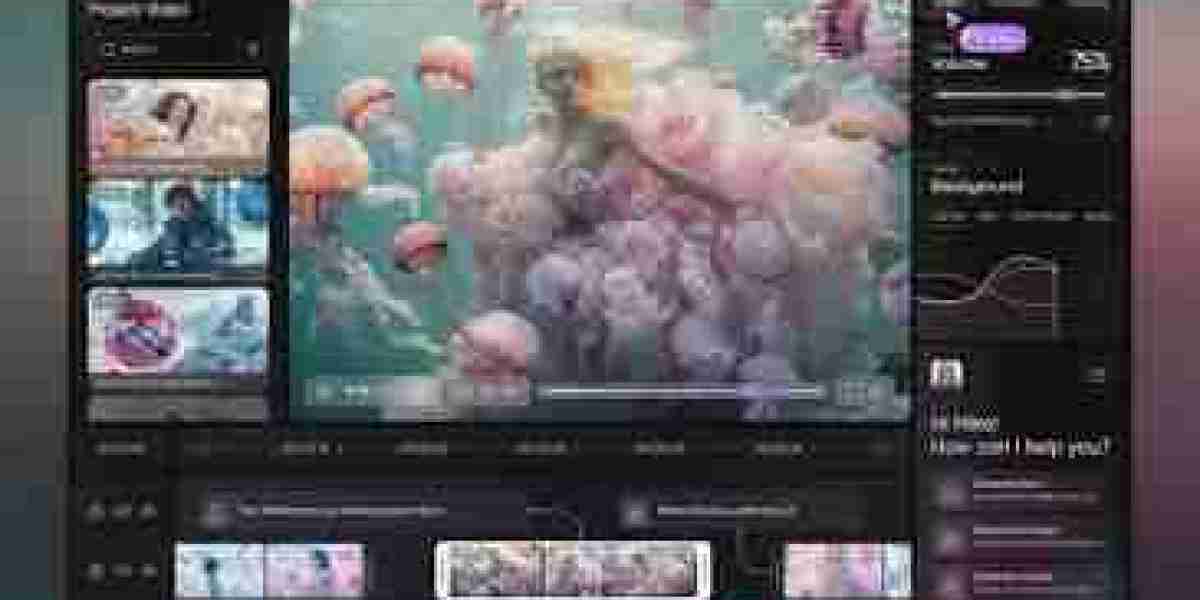
For a very long time, making videos was incredibly hard. You needed to buy a heavy, expensive camera, learn confusing computer programs, and spend days cutting small clips together. Today, things are changing very fast. Artificial Intelligence, or AI, is making video editing easier than ever before. One of the most popular AI tools in the world, ChatGPT, can now help you make and edit professional-looking videos.
Even if you have never made a video before, you can learn how to do it. You do not need to be a famous movie director. You need to know how to talk to a computer!
Because making videos is so easy now, many people want to share their new movies online. If you want to show your beautiful videos to the world, you need a great website. A perfect way to build one is to use a WordPress Video Theme. This special tool gives you a stunning space to post your videos, write fun descriptions about them, and let people watch them easily on their phones.
Understanding How ChatGPT Handles Video
Before we start, it is important to know what ChatGPT can and cannot do. The standard version of ChatGPT cannot open your raw video files and cut them together as a traditional video editor would. However, it is an amazing assistant for everything around the editing process. It can read a long video transcript, find the best quotes, structure your story, and even generate complete scripts.
To actually make a video, ChatGPT connects to external tools (called GPTs or plugins) to generate the final images and sound.
Step 1: Set Your Goal and Target Audience
Before you start asking ChatGPT to make a video, you need a clear plan. You have to tell the computer exactly what you want. Think about these three important questions:
- Who is this video for? Are you talking to young children, busy business owners, or beginners trying to learn a new hobby?
- What is the goal? Do you want people to laugh, learn a new fact, or buy a cool product?
- Where will it live? Is this a tall video for Instagram Reels (called 9:16) or a wide, flat video for YouTube (called 16:9)?
Once you know the clear answers, you can talk to ChatGPT. Could you help me create a 45-second video for beginners on saving money? Make the first 3 seconds very exciting to catch their attention.
Step 2: Write the Perfect Script
You cannot have a good video without a good story. ChatGPT is amazing at writing text. You can ask it to write the exact words you will say in the video.
Tell ChatGPT: "Write a 45-second script about saving money. Give me 3 simple tips and use short, easy sentences."
ChatGPT will quickly write a script for you. Read it out loud. Does it sound like you? If it sounds too robotic, you can ask ChatGPT to revise it. You can say, "Make it sound much funnier," or "Make it sound more friendly." Keep the sentences short. Short sentences are much easier for people to understand when they are watching a fast video on their phone.
Step 3: Break the Script into Scenes
A script is just a block of text. To make a video, you need to know what pictures will go with those words. ChatGPT can help you plan this.
Ask ChatGPT: "Now, break this script into 5 scenes. For each scene, tell me what words to say, and tell me what picture or video clip should be on the screen."
ChatGPT will give you a clear, easy-to-read list. For example, it might say:
- Scene 1: Words: "Want to save money fast?" Picture: A person holding a pink piggy bank.
- Scene 2: Words: "Tip number one: stop buying expensive coffee." Picture: A steaming cup of coffee with a red 'X' over it.
This organized list is called a storyboard. It makes putting the actual video together very easy.
Step 4: Use a Video Plugin Inside ChatGPT
Here is the really magical part. You can actually make the video right inside ChatGPT if you use special extra tools called "GPTs" or "plugins". For example, you can use the popular InVideo plugin directly from the ChatGPT "Explore GPTs" store.
Once you have your script, you open the InVideo GPT and type:
"Use this script to generate a 45-second tall video. Add an AI voice reading the words, put big text on the screen, and play happy background music."
The tool will read your script, find the right stock pictures or short video clips, add a computer voice, and put it all together in just a few seconds. It is like having a tiny, super-fast robot film crew working for you!
Step 5: Tweak and Edit Your Draft
When the computer shows you the first draft of the video, it might not be perfect. That is completely okay! You can edit it by typing simpler instructions.
If you do not like the music, you can type, "Change the music to something quieter and more relaxing." If you want a different voice, you can say, "Change the voiceover to a friendly male voice with an American accent." The app will quickly make the changes and show you a brand new version. You can keep changing it until you love it.
Step 6: The Final Polish
Once the video looks mostly correct in ChatGPT, you can usually click a button to open it in a real video-editing program (such as the full InVideo website or CapCut). There, you can do the tiny, careful edits. You can change the bright colors, make your company logo bigger, or fix a spelling mistake in the text on the screen.
When you are totally happy with how it looks, you click "Export" or "Save." Your fantastic video is ready to show the world!
(Note: OpenAI is also working on a brand new, incredibly powerful text-to-video AI called Sora. Soon, you will be able to type a sentence, and Sora will generate highly realistic, brand-new video footage from scratch!)
Final Thoughts
Using ChatGPT for video editing might sound scary at first, but it is actually very easy. You have to treat the computer like a helpful friend. Tell it what you want, ask it to write the words, and let it build the scenes for you.
When your amazing new video is finished, do not just leave it hidden on your phone! Share it on your beautiful website built with the SKT Tube or SKT Videography theme from sktthemes.org. By combining smart AI tools with a great Video WordPress Theme, you can become a professional video creator faster than you ever imagined!